
Browse and connect integrations
Find integrations on the Integrations page, see which are available now and which are coming soon, and connect one.
The Integrations page is where you connect Homeforce to the other tools you use: phones, accounting, calendars, lead sources and more. Owners and admins can connect and manage integrations.
Open the Integrations page
Go to Settings → Integrations, or open /integrations.
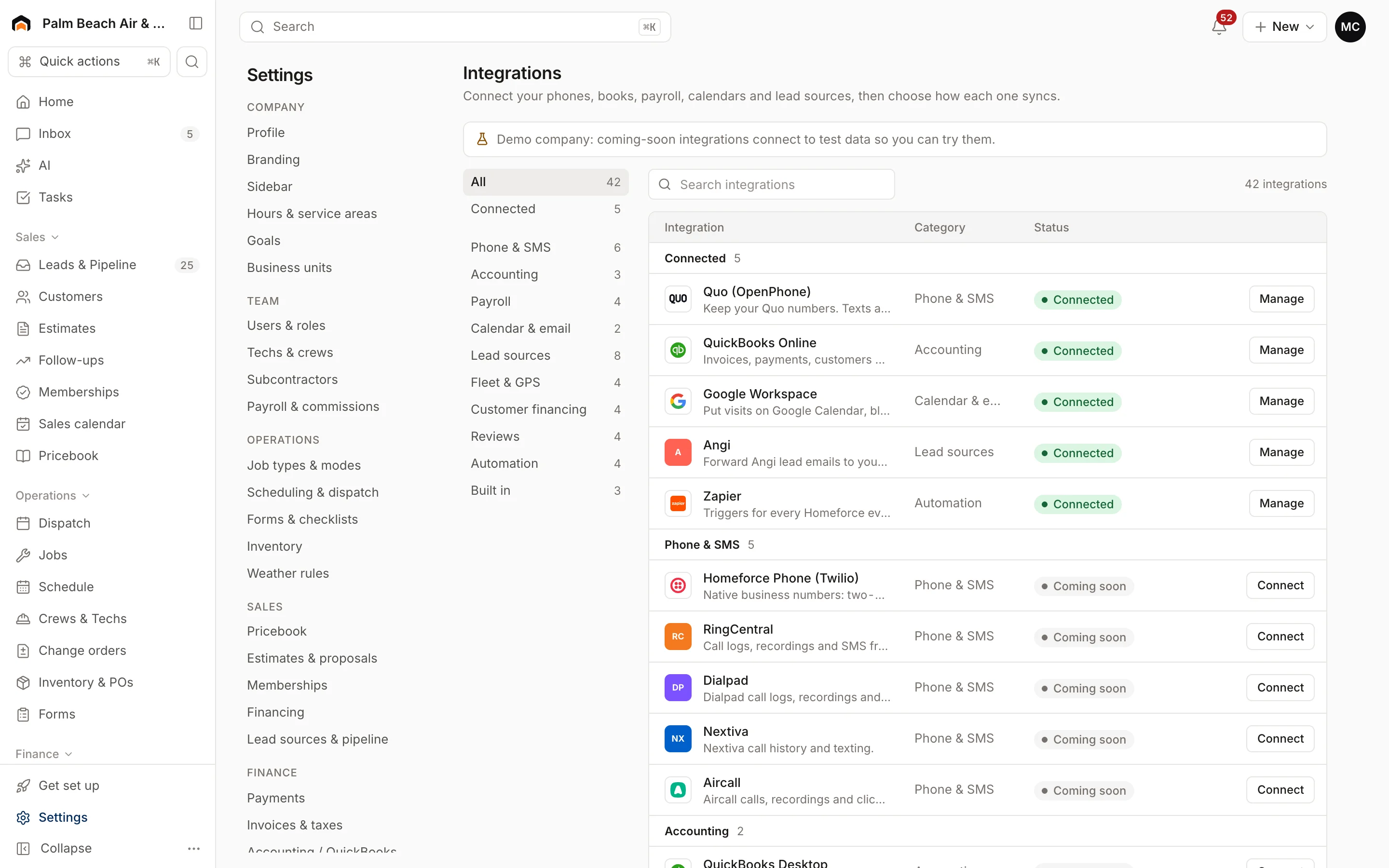
Use the list on the left to filter by category, or type in Search integrations. Connected shows only what you've already set up. Built in lists services that come with Homeforce.
What each status means
- Connected: set up and syncing. Click Manage to open it.
- Needs attention: connected but something's wrong, like an expired sign-in. Open it to fix it.
- Available: you can connect it now. Click Connect.
- Coming soon: not ready to connect yet. Click Notify me and we'll let you know when it is.
- Included: a built-in service that's switched on for you.
What's available today
| Integration | Status |
|---|---|
| Quo (OpenPhone) | Available |
| Google Workspace (Google Calendar) | Available |
| Website forms & chat | Available |
| Outbound webhooks and Public API | Available |
| QuickBooks Online | Coming soon |
| Homeforce Phone (Twilio), RingCentral | Coming soon |
| Angi, Thumbtack, HomeAdvisor, Yelp, Meta lead ads, Google Local Services | Coming soon |
| Google Business Profile | Coming soon |
| Zapier and Make | Coming soon |
| Xero, QuickBooks Desktop, Gusto, ADP, Paychex, Microsoft 365, fleet GPS, financing and review apps | Coming soon |
The page itself is always the most up-to-date list. If a row says Coming soon, it isn't ready yet, even if another screen links to it.
Connect an integration
- Find the integration and click Connect.
- Follow the setup steps. Most walk you through Authorize, Account, Mappings, Sync rules and Review.
- Click Turn on sync on the last step.
See Manage a connection for what each step means.
Don't see your tool?
At the bottom of the page, fill in Tool, Category and What should it do?, then click Request. We'll let you know when it's available.
Was this helpful?
Related articles
Integrations
Manage a connection
Set up and run a connected integration, including mappings, sync rules, the activity log, Sync now, backfills and disconnecting.
Integrations
QuickBooks Online
The status of the QuickBooks Online integration, what it will sync and which way, and how mappings and sync rules work.
Integrations
Connect Quo (OpenPhone)
Keep your Quo numbers and bring texts and calls into Homeforce's inbox and customer timelines.
Integrations
Connect Google Calendar
Connect Google Workspace so scheduled visits appear on a Google Calendar, with assigned techs invited.
Still stuck?
Our team answers support emails during business hours, usually within a few hours.