
Connect Google Calendar
Connect Google Workspace so scheduled visits appear on a Google Calendar, with assigned techs invited.
Connect Google Workspace to put your scheduled visits on a Google Calendar. It's handy for owners and techs who live in their phone's calendar. Owners and admins can connect it.
What it does today
- Every scheduled visit is added to the Google Calendar you choose, as it happens.
- Each event shows the job number, customer and job summary, the job description, and the property address.
- When a visit is rescheduled or reassigned, the event updates.
- If you turn on Invite assigned techs, the techs on the visit are added as guests.
Connect it
- Go to Settings → Integrations.
- Find Google Workspace under Calendar & email and click Connect.
- Click Connect with Google Workspace and sign in with the Google account whose calendar you want to use. Allow access, and you'll come right back.
- On Account, pick the Calendar for visits. A shared company calendar works well.
- Tick Invite assigned techs if you want techs added to each event.
- Click Continue through the remaining steps, then Turn on sync.
Check that it's working
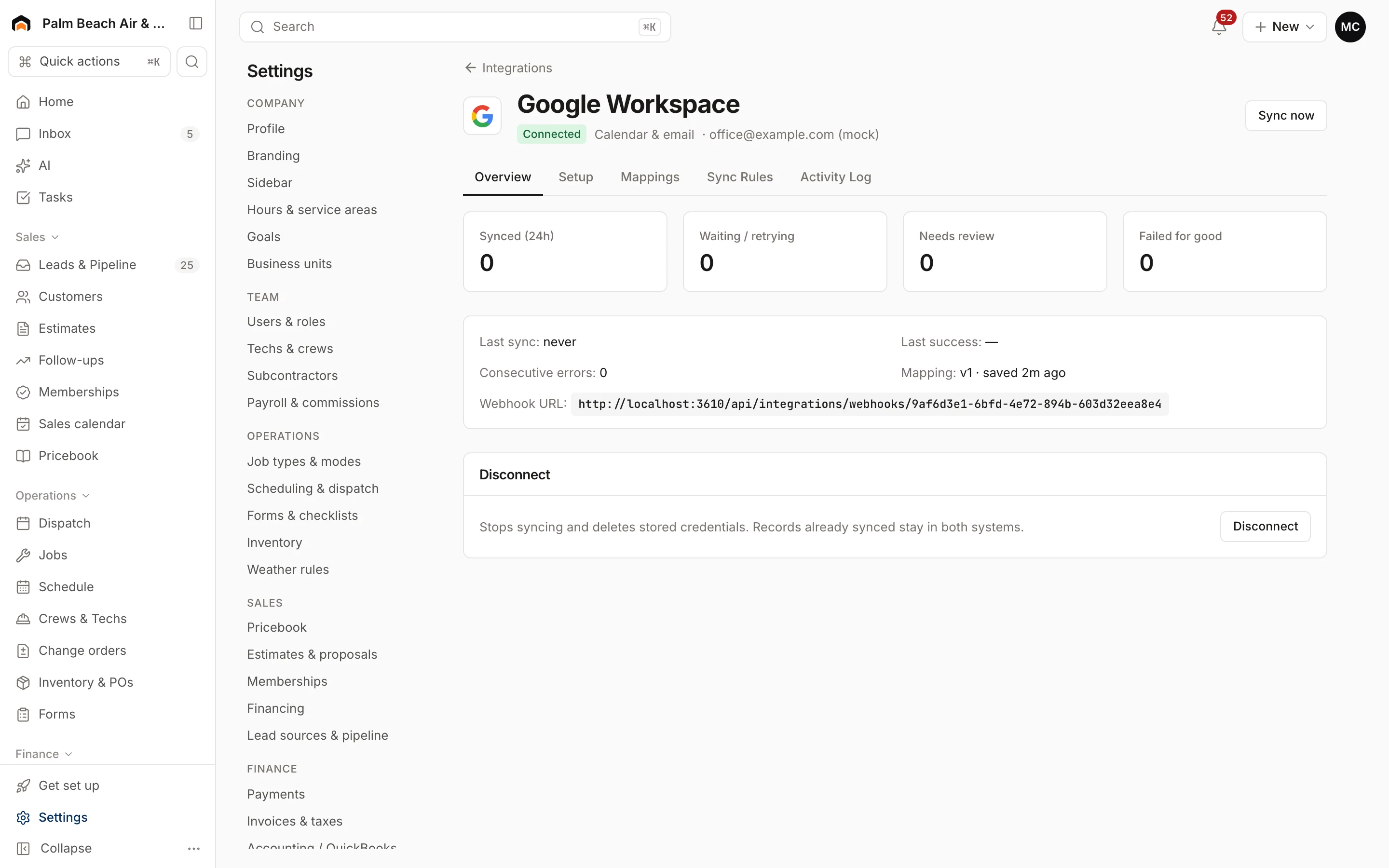
Schedule a test visit, then open the connection and go to the Activity log tab. You should see a Calendar events row with a result of succeeded. Then look for it in Google Calendar.
Visits scheduled before you connected aren't added automatically. To add your upcoming visits, open Sync rules and use Queue backfill. Past visits aren't added.
Stop syncing
To pause, open Sync rules, set Calendar events to Off, and click Save. To stop completely, go to Overview and click Disconnect. Events already on the calendar stay there.
See Manage a connection for the rest of the connection page.
Was this helpful?
Related articles
Integrations
Manage a connection
Set up and run a connected integration, including mappings, sync rules, the activity log, Sync now, backfills and disconnecting.
Scheduling and dispatch
Use the dispatch board
See every tech's day on one timeline, drag waiting work onto the board, and keep the day on track from the office.
Integrations
Browse and connect integrations
Find integrations on the Integrations page, see which are available now and which are coming soon, and connect one.
Integrations
QuickBooks Online
The status of the QuickBooks Online integration, what it will sync and which way, and how mappings and sync rules work.
Still stuck?
Our team answers support emails during business hours, usually within a few hours.