
Your website and chat widget
Publish a Homeforce website with online booking, reviews and chat, connect your own domain, or add the chat bubble to the site you already have.
Homeforce can host a simple, mobile-friendly website for your company with online booking, reviews and a chat bubble. If you already have a website, you can add just the chat bubble to it. Either way, chats land in your inbox and become leads.
Owners and admins can change the website.
Build your site
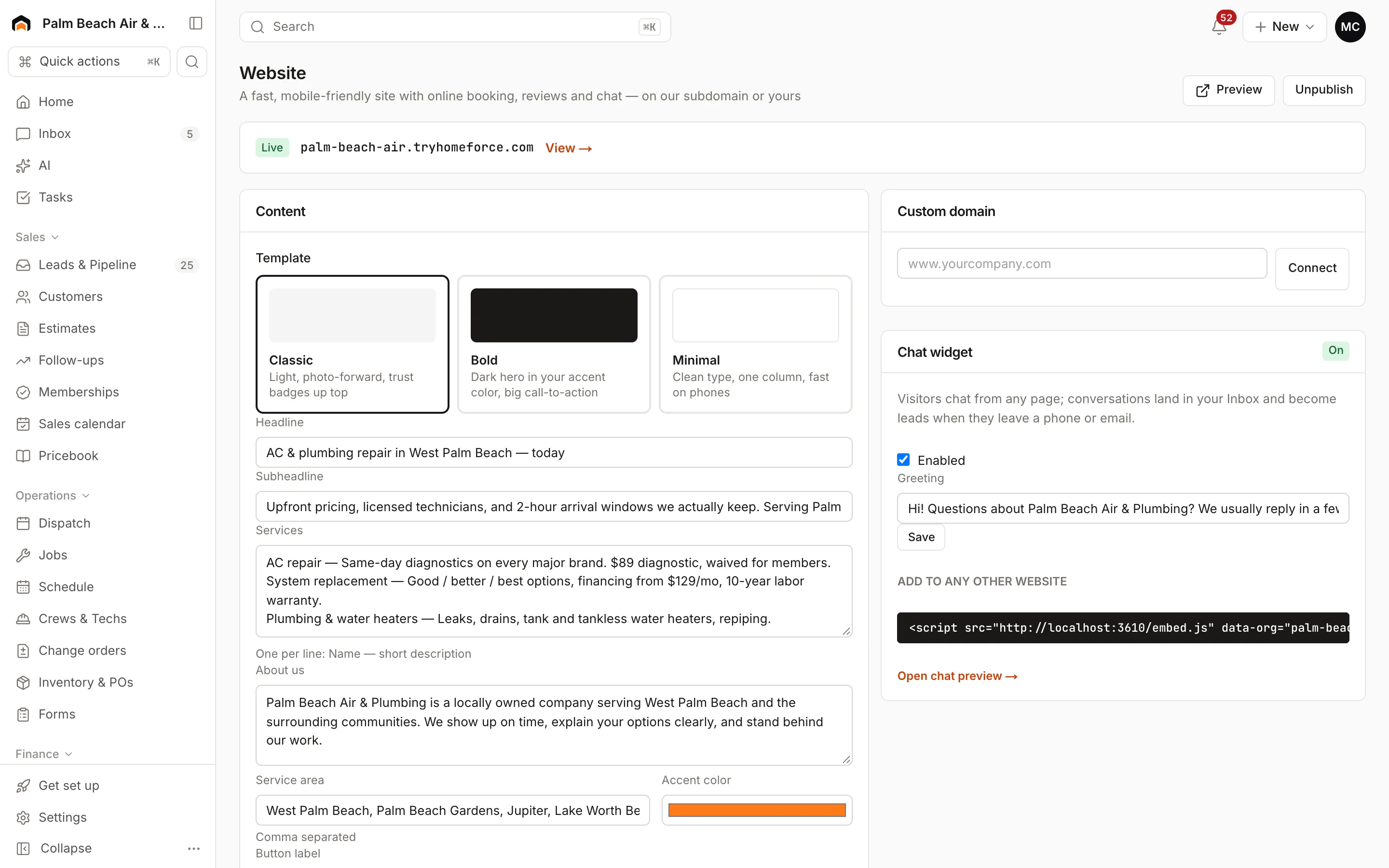
- Go to Website & chat in the sidebar.
- Under Content, pick a Template.
- Fill in Headline, Subheadline and About us.
- Under Services, add one per line, like "AC repair — Same-day fixes for any brand".
- List your Service area, separated by commas.
- Pick an Accent color and the Button label.
- Choose what to show: Online booking, Reviews and Chat bubble.
- Click Save content.
Click Preview to see it. When you're happy, click Publish site. The status changes from Draft to Live, and your web address shows at the top. To take it down, click Unpublish.
Use your own domain
- Under Custom domain, type your address, like
www.yourcompany.com, and click Connect. - Add the records shown (Type, Host, Value) at your domain registrar, like GoDaddy or Namecheap.
- Click Verify DNS. It can take up to an hour for the records to be found.
When it's connected, the badge changes from Waiting for DNS to Connected. The security certificate is set up for you.
Chat widget
The Chat widget card controls the chat bubble.
- Tick Enabled and write a Greeting, then click Save.
- Click Open chat preview to try it.
When a visitor sends a message, it lands in your Inbox as a chat. If they leave a phone number or email that matches a customer, the chat is attached to that customer. If not, a new lead is created. Your team replies from the inbox, and the visitor sees the reply in the chat window.
Add chat to another website
Under Add to any other website, copy the one-line code and paste it into your site, just before the closing body tag. If someone else manages your site, send them the line. The Website forms & chat row on Settings → Integrations shows the same code.
Was this helpful?
Related articles
Integrations
Lead source integrations
The status of Angi, Thumbtack, HomeAdvisor, Yelp, Meta lead ads and Google Local Services, and how to get leads into Homeforce today.
Sales
Manage leads
Work every new inquiry on the Leads board, from New to Contacted to Booked, and see where your leads come from.
Integrations
Browse and connect integrations
Find integrations on the Integrations page, see which are available now and which are coming soon, and connect one.
Integrations
Manage a connection
Set up and run a connected integration, including mappings, sync rules, the activity log, Sync now, backfills and disconnecting.
Still stuck?
Our team answers support emails during business hours, usually within a few hours.