
Stripe payments
How card and bank payments run through Stripe in Homeforce, how to set up your Stripe account, and choose payment methods and payouts.
Customers pay your invoices, deposits and pay links by card or bank transfer through Stripe. Stripe is built into Homeforce, so there's nothing to connect on the Integrations page. Instead, you set up your Stripe account from Settings → Payments.
On Settings → Integrations, Stripe appears under Built in. Included means it's switched on for your account. If it says Coming soon, online payments aren't available to you yet.
Owners and admins can manage payment settings.
Set up payments
- Go to Settings → Payments.
- Under Payment processing, click Set up payments.
- Stripe's secure pages open. Enter your business and bank details there.
- When you're done, Stripe sends you back to Homeforce.
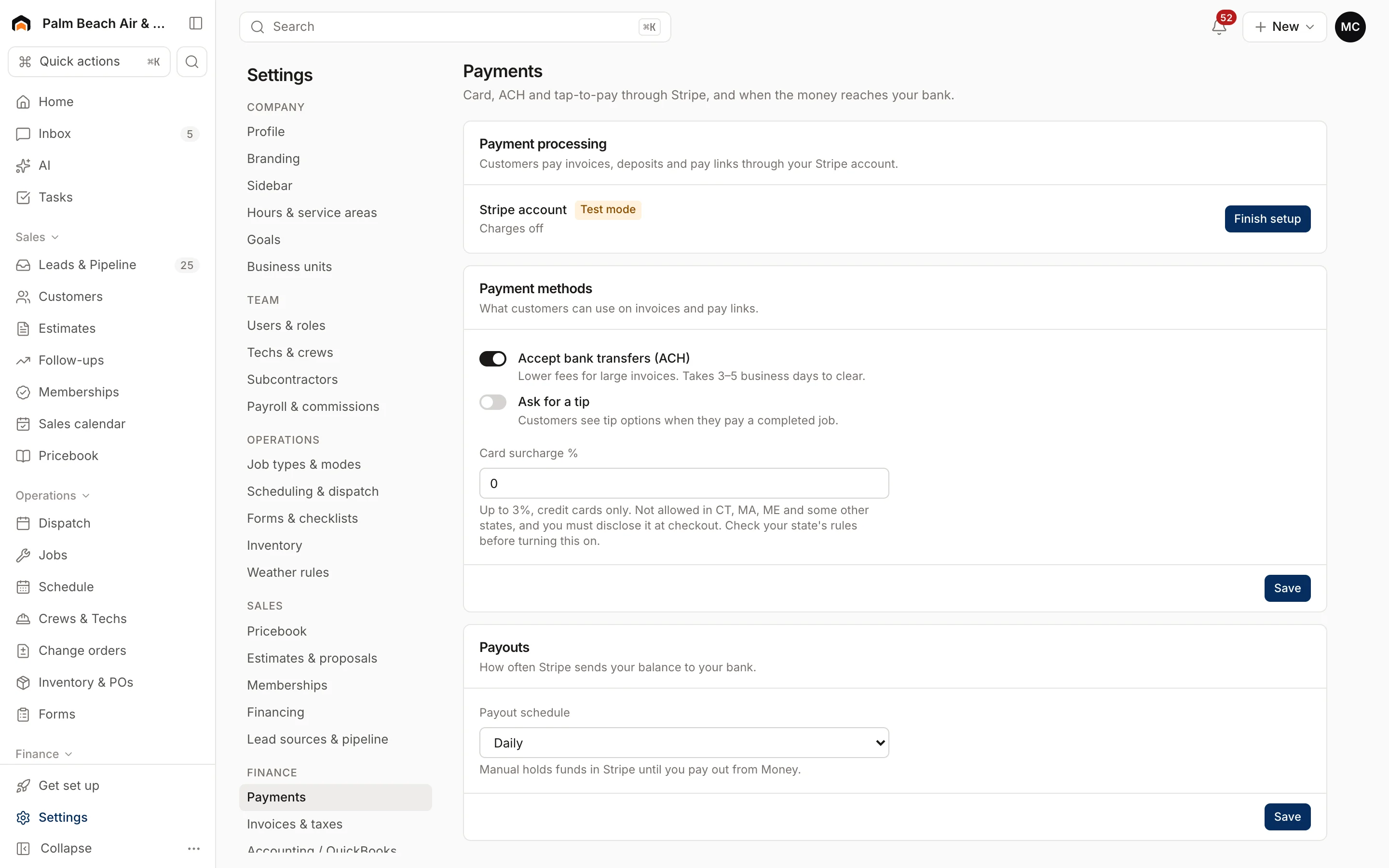
The Stripe account row shows your status:
- Not set up: you haven't started.
- Setup incomplete: Stripe needs more information. Click Finish setup. The row tells you how many items Stripe still needs.
- Accepting payments: you're ready to take payments.
If you see "That setup link expired", click the button again. You'll continue where you left off.
To change your business or bank details later, click Update details.
Payment methods
Under Payment methods, you'll find Accept bank transfers (ACH), Ask for a tip and Card surcharge %.
Payouts
Under Payouts, choose how often Stripe sends your balance to your bank: Daily, Weekly or Manual.
For collecting payments on an invoice, see Create and send an invoice.
Was this helpful?
Related articles
Invoices and payments
Create and send an invoice
Build an invoice from your pricebook, save it as a draft or send it with a pay link by text and email.
Integrations
QuickBooks Online
The status of the QuickBooks Online integration, what it will sync and which way, and how mappings and sync rules work.
Integrations
Browse and connect integrations
Find integrations on the Integrations page, see which are available now and which are coming soon, and connect one.
Integrations
Manage a connection
Set up and run a connected integration, including mappings, sync rules, the activity log, Sync now, backfills and disconnecting.
Still stuck?
Our team answers support emails during business hours, usually within a few hours.