
Manage a connection
Set up and run a connected integration, including mappings, sync rules, the activity log, Sync now, backfills and disconnecting.
Each integration you connect gets its own page. That's where you choose what syncs, check that it's working, and fix anything that didn't go through. Owners and admins can manage connections.
To open one, go to Settings → Integrations and click Manage on a connected row.
First-time setup
A new connection walks you through five steps:
- Authorize: sign in to the other service, or paste its keys and click Save & verify.
- Account: name the connection and choose account options, like which business unit or calendar to use.
- Mappings: match your Homeforce items to theirs. Homeforce matches by name to start; fix anything that's off.
- Sync rules: choose what syncs, which way and how often. Sensible defaults are already on.
- Review: see a preview of what will sync, and any gaps. Click Turn on sync.
The tabs
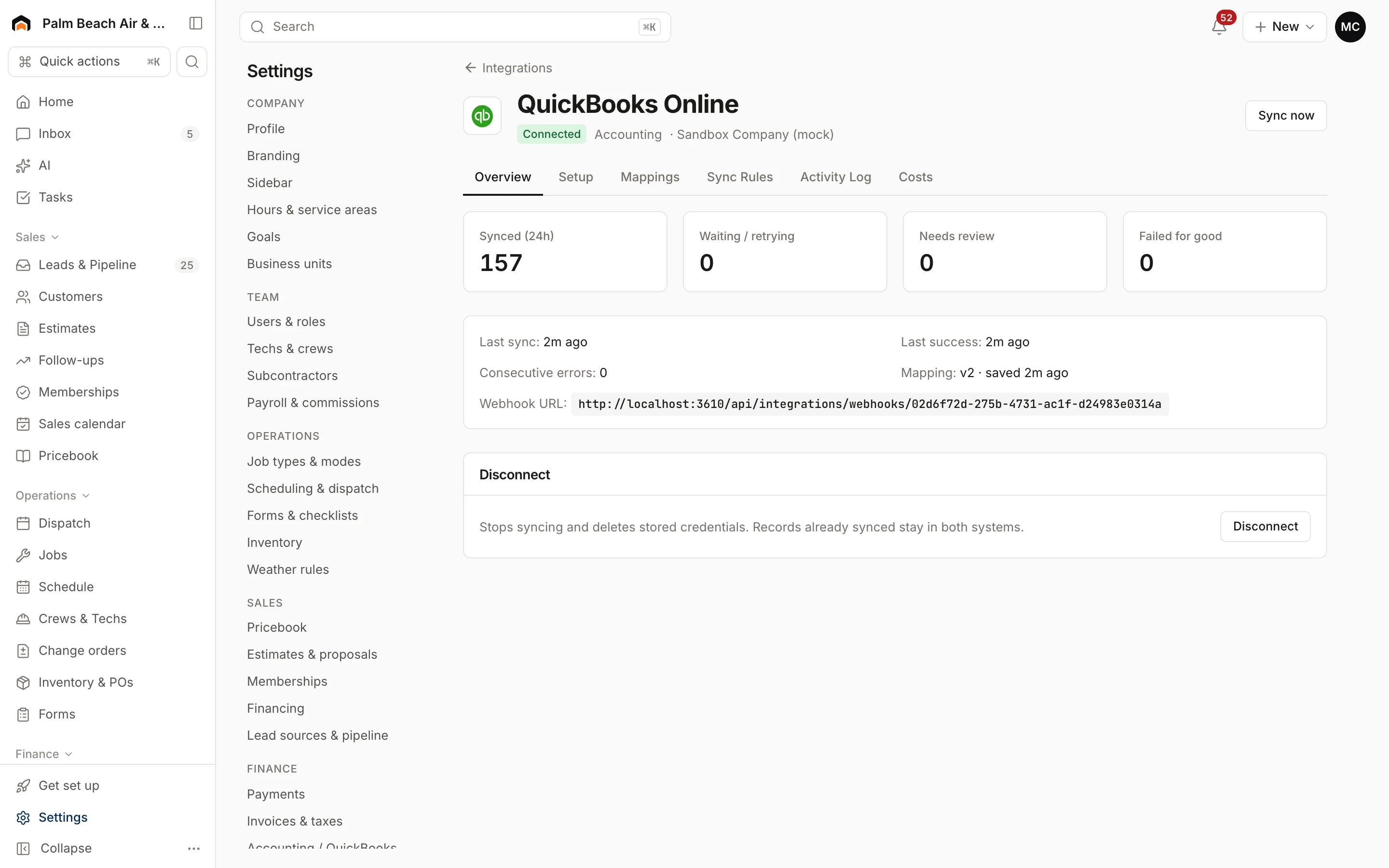
Overview shows Synced (24h), Waiting / retrying, Needs review and Failed for good, plus the last sync time and any last error. It's also where you Disconnect.
Setup lets you re-authorize (Reconnect) and change account options.
Mappings has Auto-match to fill empty slots, Preview what will sync to try your changes without sending anything, and a save button. Each save is kept as a new version, with Version history below.
Sync rules has one card per record type. For each, set:
- Direction: Homeforce → them, Them → Homeforce, Two-way or Off
- When: As it happens, On a schedule or Only when I click sync
- Every (min) for scheduled syncs, and Start from a date
- If both changed: Homeforce wins, Theirs wins, Newest wins or Flag for review
Each card has Dry run (shows what would happen without sending) and Sync now. Below the cards, Queue backfill syncs everything since a date you pick.
Activity log lists every record synced, newest first, with its result:
- Retry sends a failed record again.
- Fix mapping takes you to Mappings when a record failed because something isn't mapped.
- Keep Homeforce or Keep theirs settles a record that changed on both sides.
Sync now
Click Sync now at the top of the page to run every rule right away.
Reconnect
If a sign-in expires, the connection shows Reconnect needed and owners and admins get an email. Click Reconnect and sign in again. Nothing is lost; changes wait and sync once you reconnect.
Disconnect
On Overview, click Disconnect and confirm. Syncing stops and Homeforce deletes the stored sign-in. Records already synced stay in both systems.
Was this helpful?
Related articles
Integrations
Browse and connect integrations
Find integrations on the Integrations page, see which are available now and which are coming soon, and connect one.
Integrations
QuickBooks Online
The status of the QuickBooks Online integration, what it will sync and which way, and how mappings and sync rules work.
Integrations
Connect Quo (OpenPhone)
Keep your Quo numbers and bring texts and calls into Homeforce's inbox and customer timelines.
Integrations
Connect Google Calendar
Connect Google Workspace so scheduled visits appear on a Google Calendar, with assigned techs invited.
Still stuck?
Our team answers support emails during business hours, usually within a few hours.