
How moving to Homeforce works
Upload every export from your old software at once, check what Homeforce found, then import customers, jobs, estimates and invoices in one go.
Moving from another system takes three steps: export your data there, drop every file into Homeforce, then review and import. Owners and admins can import.
1. Export from your old software
Pull a copy of your customers, jobs, estimates, invoices and price list. Each guide in this section shows where those exports live: Jobber, Housecall Pro, ServiceTitan, QuickBooks, DripJobs, Workiz, GorillaDesk, or your own spreadsheets.
2. Upload everything at once
- Go to Settings → Data import/export and click Start an import. You can also click Import on the setup checklist.
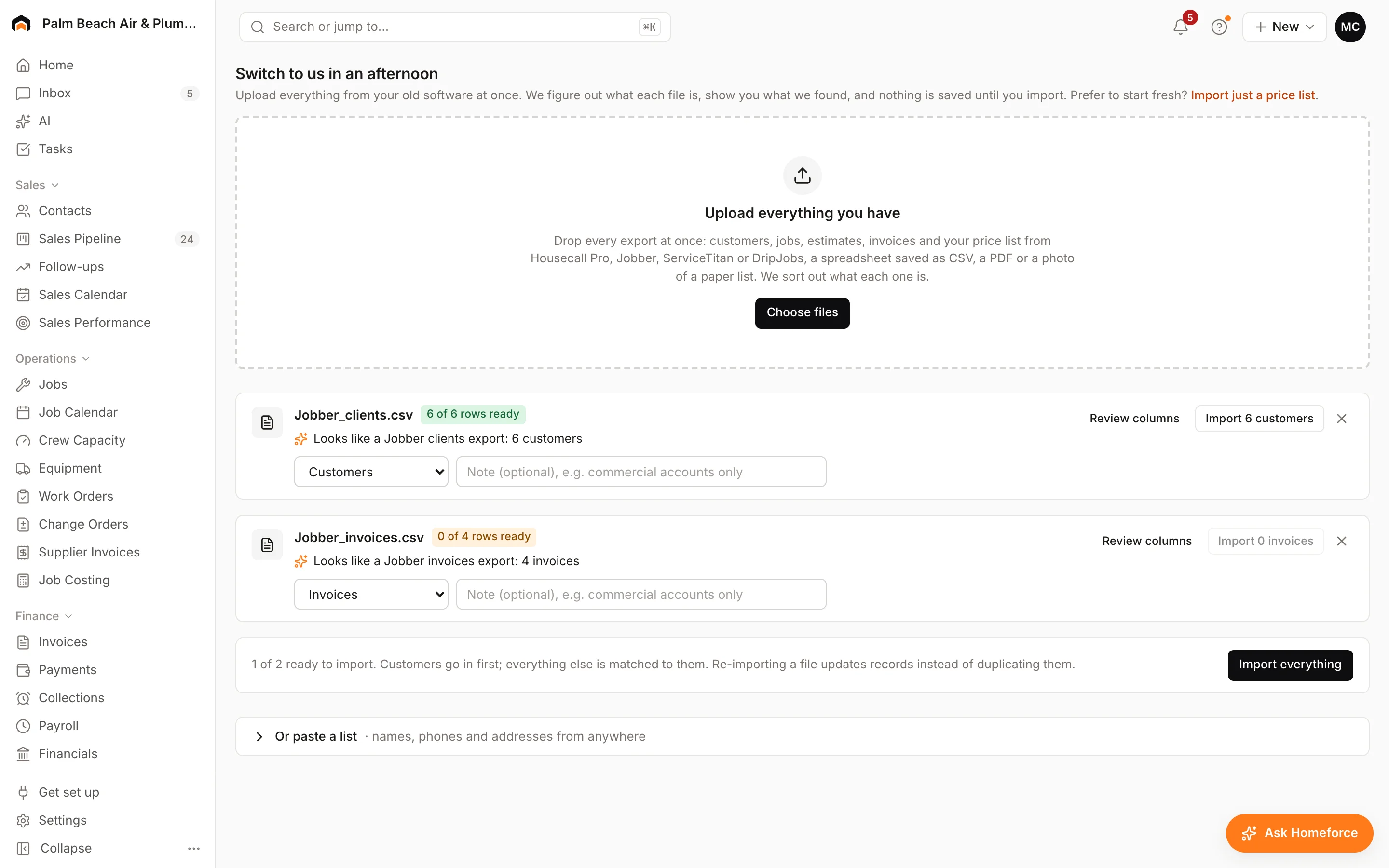
- Under Upload everything you have, click Choose files or drag your files onto the box. You can drop many files together.
- Homeforce reads each file and shows it as a card with a short summary, like "Looks like a Jobber clients export: 1,240 customers."
What you can upload:
- CSV exports from Housecall Pro, Jobber, ServiceTitan, DripJobs or any spreadsheet saved as CSV. These are read directly, with no row limit.
- A PDF, a photo of a paper list, or a text file. AI reads these into rows, up to 200 rows per file.
- A pasted list. Click Or paste a list, paste names, phones and addresses from anywhere, then click Read it.
PDFs and text files can be up to 3 MB each; bigger photos are shrunk for you. Excel files aren't read yet, so save them as CSV first (File → Save as → CSV).
3. Review, then import
Check each card's Category, open Review columns to see how columns were matched, and fix anything that's off. Review your import walks through it.
When everything looks right, click Import everything. Customers go in first, then jobs, estimates and invoices are matched to them. Each card then shows what was created, updated and skipped, and the import is listed under Import history.
Was this helpful?
Related articles
Switching to Homeforce
Review your import
Check what Homeforce found in each file, match columns, fix rows that would be skipped, and see how duplicates are handled before you import.
Switching to Homeforce
Switching questions
How long a move takes, what happens to your files, what AI sees, and what doesn't come across from your old software.
Getting started
Import your customers and pricebook
Bring customers, jobs, estimates, invoices and your price list over from Housecall Pro, Jobber, ServiceTitan, DripJobs or a spreadsheet.
Switching to Homeforce
Export your data from Jobber
Where to find every Jobber export (clients, jobs, visits, quotes, invoices, payments and your products list) before you move to Homeforce.
Still stuck?
Our team answers support emails during business hours, usually within a few hours.