
Review your import
Check what Homeforce found in each file, match columns, fix rows that would be skipped, and see how duplicates are handled before you import.
Before anything is saved, every file you upload sits on the Import page as a card. Use it to check that Homeforce read each file the way you meant.
Check the card
- Category says what the file holds: Customers, Contacts, Properties, Equipment, Estimates, Jobs, Invoices, Payments, Pricebook or Other. If it's wrong, pick the right one. A PDF, photo or text file is read again as the new kind.
- The badge shows how many rows are ready, for example 118 of 120 rows ready, or Needs a look if the file couldn't be read.
- Add a Note if it helps, like "commercial accounts only." AI uses it when reading photos and PDFs.
Match the columns
Click Review columns to open the mapping.
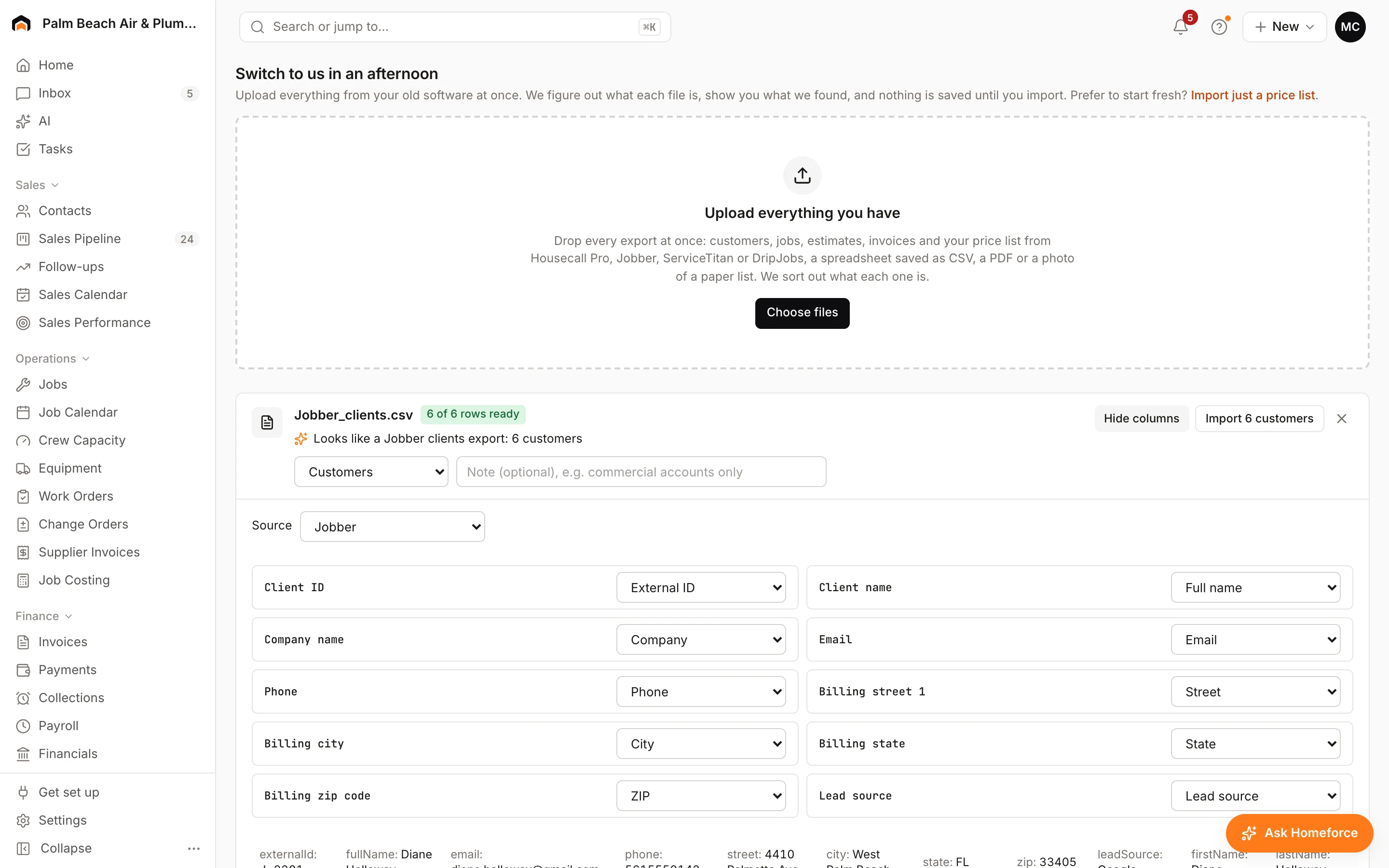
- Check Source: Housecall Pro, Jobber, ServiceTitan, DripJobs or Spreadsheet / other. Homeforce picks it from the column names; change it if it guessed wrong.
- For each column in your file, pick the Homeforce field it holds, or — ignore —. Required fields are marked with *.
- Look over the sample rows underneath.
Fix what would be skipped
Under the sample, Heads up notes list rows that still import but lose something, such as an email that doesn't look right or an address without a city or ZIP.
The list of rows that will be skipped shows why: a missing name, an invalid amount or date, or "No customer matches … import customers first." Fix those rows in your file and upload it again, or carry on and import the rest.
How duplicates are handled
- A customer that matches an existing one by its old system ID, email or phone is updated, not duplicated. A new address is added as another property.
- When one file has the same customer twice, the later row updates the first, and the review tells you.
- Jobs, estimates and invoices find their customer by old ID, email, phone or name.
- Importing the same file again doesn't make duplicates. Customers are updated; jobs, estimates and invoices it already brought in are left as they are.
What each record becomes
Imported records are live, just like ones you create:
- Estimates keep their status and dates, as one option with a single line at the total.
- Jobs keep their status. A job with a date gets a visit at 9:00 AM, so upcoming work lands on the calendar.
- Invoices come in as one line at the total. Any amount paid becomes a payment on the invoice date. Open invoices get your usual payment reminders.
Was this helpful?
Related articles
Switching to Homeforce
How moving to Homeforce works
Upload every export from your old software at once, check what Homeforce found, then import customers, jobs, estimates and invoices in one go.
Switching to Homeforce
Switching questions
How long a move takes, what happens to your files, what AI sees, and what doesn't come across from your old software.
Settings
Import and export your data
See past imports, start a new one, and download your customers, jobs, estimates, invoices and payments as CSV files.
Switching to Homeforce
Export your data from Jobber
Where to find every Jobber export (clients, jobs, visits, quotes, invoices, payments and your products list) before you move to Homeforce.
Still stuck?
Our team answers support emails during business hours, usually within a few hours.