
Connect your email and calendar
Connect your own Gmail or Microsoft 365 so customer emails go from your address and your visits land on your calendar.
Each person on your team can connect their own mailbox. Emails you write to customers then go from your address, and the visits you're assigned to appear on your own calendar.
Connect yours
- Go to Settings → Email & calendar. Anyone on the team can open it.
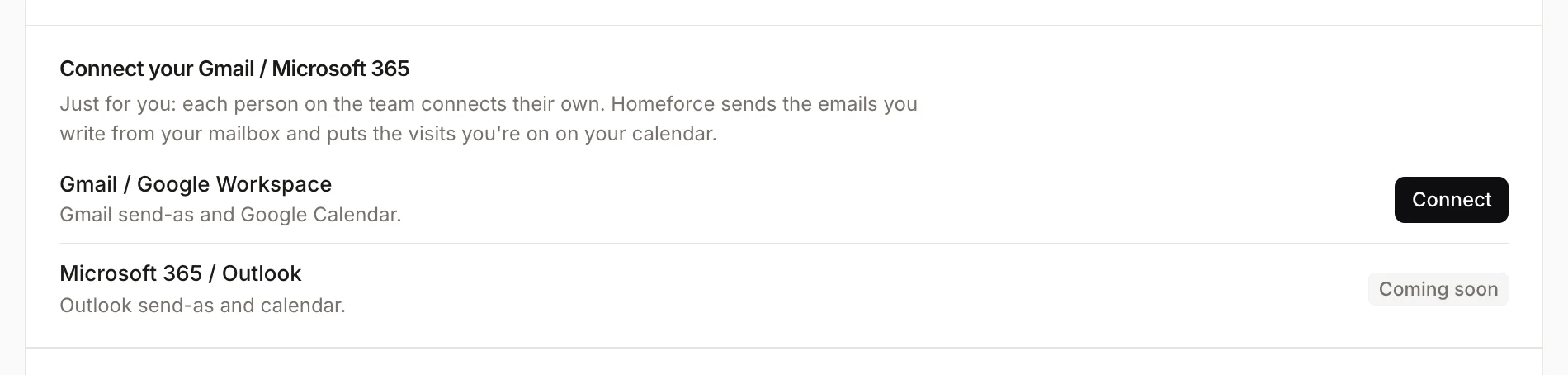
- Under Connect your Gmail / Microsoft 365, click Connect next to Gmail / Google Workspace or Microsoft 365 / Outlook.
- Sign in and allow access. If the status shows Finish connecting, click it to complete the last step.
The first time you sign in, Homeforce may ask you to Connect your email on your Home page. Click Not now to skip it.
What it does
- Your visits on your calendar. Visits you're assigned to are added to your calendar with the job number, customer and address. They update when the visit moves, and disappear if it's canceled.
- Your busy times. When someone books an appointment for you, Homeforce checks your calendar so it doesn't offer times you're busy.
- Emails from you. Emails you write to customers in Homeforce go from your own mailbox. Automatic emails, like reminders, still go from the company sender.
Events from your own calendar don't show on the Homeforce calendars.
For owners
Owners also see:
- Your team: how many people have connected (for example 4 of 9 connected), and Send reminders to the rest.
- Company sender (fallback): the from name, reply-to and footer for emails sent when someone hasn't connected.
- Company calendar: the shared calendar connection.
Disconnect
Click Disconnect. Your emails go from the company sender again.
Was this helpful?
Related articles
Integrations
Connect Google Calendar
Connect Google Workspace so scheduled visits appear on a Google Calendar, with assigned techs invited.
Scheduling and dispatch
Use the Job and Sales calendars
See jobs and sales appointments by month, week, three days or day, filter by crew or rep, and drag work to a new day with Undo.
Settings
Email and automated messages
Set the sender name and reply-to address on customer emails, connect your mailbox, and edit the texts and emails Homeforce sends on its own.
Integrations
Browse and connect integrations
Find integrations on the Integrations page, see which are available now and which are coming soon, and connect one.
Still stuck?
Our team answers support emails during business hours, usually within a few hours.