
Price with production rates
How production-rate lines turn measurements into labor hours, materials and a price, and how to override one.
A production rate is how much work your crew gets done in an hour, like 175 sq ft of walls per hour at two coats. Homeforce uses your rates to price measured work, so every proposal is priced the same way, from crew time and materials.
How a rate line is priced
For each line, Homeforce works out:
- Labor hours: the quantity divided by the rate (or the quantity times hours per task).
- Labor cost: those hours times your labor rate.
- Materials: the quantity times coats, divided by the product's coverage, plus waste, times the product's cost.
- Price: cost plus your markup (or the price that hits your margin target).
Your labor rate, crew size, markup and waste come from Settings → Estimating. Each line keeps the numbers it was priced with, so changing your settings later never changes a proposal you've sent.
See the math
Open Advanced: rates, products, coats, waste, modifiers and price book lines under an area to see every line. Hover over a line's hours or price to see exactly how it was worked out.
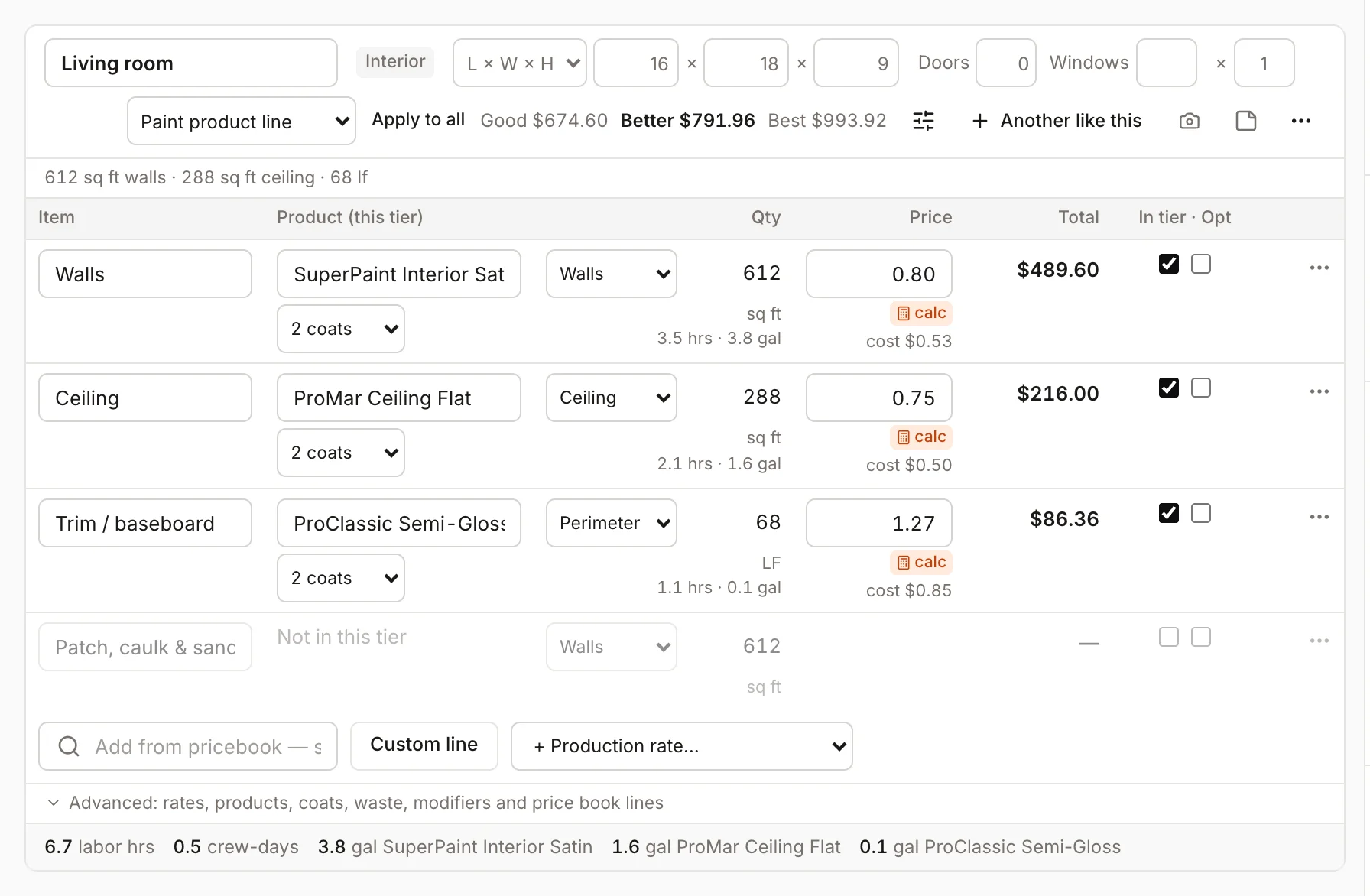
From the line table you can change the Coats, the product for each tier, or the quantity source. The Line actions menu adds rate modifiers (say, +15% labor for a tall ceiling) or sets the waste factor.
Override a price
A calculated price shows a calc chip. Type your own price and it changes to override: the line keeps your price, while hours and materials still come from the rate for scheduling and job costing. Click ↺ calc to go back to the calculated price.
Roll-ups and work days
Each area shows its labor hours, crew-days and materials to buy. The panel on the right adds them up for the whole proposal under Labor and materials, including Suggested work days. When the job is booked, Add visit suggests that many work days, and the job page later compares the estimate to the actual crew time.
Was this helpful?
Related articles
Sales
Build a proposal
Price a job area by area from its measurements, offer Good, Better and Best, and send a proposal the customer can sign online.
Settings
Estimating settings and pricing modes
Choose how proposals are priced, set your labor rates and markup, tune production rates, and edit your Good, Better, Best presets.
Sales
Good, Better, Best tiers and pricing
Offer three tiers on a proposal, decide how each area differs between them, add optional extras, and set discounts and deposits.
Sales
Manage leads
Work every new inquiry on the Leads board, from New to Contacted to Booked, and see where your leads come from.
Still stuck?
Our team answers support emails during business hours, usually within a few hours.