
Estimating settings and pricing modes
Choose how proposals are priced, set your labor rates and markup, tune production rates, and edit your Good, Better, Best presets.
Settings → Estimating decides how your proposals are priced. Owners and admins can change it.
Pricing mode
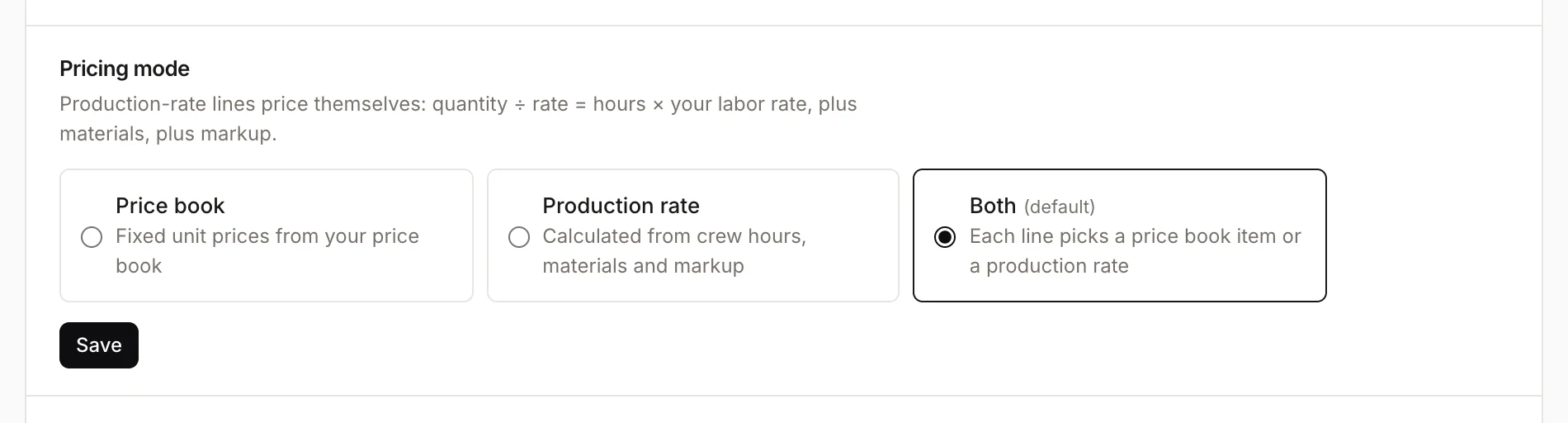
- Price book: every line uses a fixed unit price from your price book. Production rates are turned off in the builder.
- Production rate: lines are calculated from crew hours, materials and markup. The builder offers + Custom line instead of a price book search.
- Both (the default): each line can be a price book item or a production rate.
Click Save after you change it.
Company defaults
These feed every new rate line:
- Burdened labor rate per role: what an hour costs you, including payroll taxes, insurance and overhead. Add a role for each rate (for example a spray tech) and pick the default.
- Crew size, Hours per day and Waste %.
- Price with: Markup on cost or Margin target, with the Markup % or Margin target %.
- Minimum job charge ($): proposals under it get a minimum charge line.
Each line keeps the numbers it was priced with, so changing these never moves a proposal you've already sent.
Rate library
Homeforce starts you with a library for each of your trades. To add another trade, pick it under Trade and click Add starter rates.
Each rate shows what it measures and how fast your crew does it. Open one to change its production per hour (per coat count, for painting), the material, its coverage and cost, and the waste. You can also set a flat price per unit. Use Turn off to hide a rate from the builder, Reset to starter to undo your changes, and + Add a rate for your own.
Rate suggestions
When finished jobs sold on production rates have crew time logged, and the actual time is 10% or more off the estimate, Rate suggestions lists the rates to change. Click Update or Dismiss.
Good / Better / Best presets
A preset describes how the three tiers differ for a trade: the product, which lines each tier includes, a quantity factor (like coats), and add-ons.

Edit a starter preset and click Save preset, or use + New preset for your own. The builder applies a preset to each area, and you can switch it there. See Good, Better, Best tiers and pricing.
Was this helpful?
Related articles
Sales
Price with production rates
How production-rate lines turn measurements into labor hours, materials and a price, and how to override one.
Sales
Good, Better, Best tiers and pricing
Offer three tiers on a proposal, decide how each area differs between them, add optional extras, and set discounts and deposits.
Settings
Estimate and pricebook settings
Set estimate expiry, default deposits, good/better/best, follow-up sequences, pricebook markups and member discounts.
Settings
Company profile and branding
Set your company name, trades, license number, contact details, time zone, logo and your own profile photo.
Still stuck?
Our team answers support emails during business hours, usually within a few hours.